February 2005
Beginner to intermediate
608 pages
22h 4m
English
How you record an invoice payment depends on the type of payment. Most of the time, you'll choose Customers→Receive Payments to open the Receive Payments dialog box, which can handle full and partial payments for one job or several, early payment discounts, credits, and downloaded online payments. But you record some types of payments in other places.
Here are the dialog boxes that can record payments and when you use them:
Create Invoices dialog box. See page 184 to learn how to record a partial payment that you receive at the time of sale. These payments appear on the invoice you prepare, and reduce its balance.
Create Credit Memos/Refunds dialog box. If your customer makes a down payment or prepays an invoice, create credit memos to record these payments (page 220).
Enter Sales Receipts dialog box. When your customers pay in full at the time of sale, record payments in this dialog box (page 249), whether the customers pays with cash, check, or credit card.
For any other kind of payment, follow these steps to record payments you receive from your customers:
Choose Customers→Receive Payments.
QuickBooks opens the Receive Payments window.
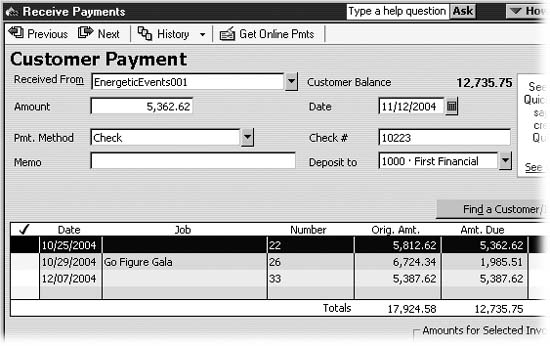
Figure 9-4. When you choose a customer or job, at the top of the dialog box, QuickBooks shows the corresponding balance (including any credits available). The program also fills in the table here with every unpaid ...
Read now
Unlock full access


 O’Reilly covers everything we've got, with content to help us build a world-class technology community, upgrade the capabilities and competencies of our teams, and improve overall team performance as well as their engagement.I wanted to learn C and C++, but it didn't click for me until I picked up an O'Reilly book. When I went on the O’Reilly platform, I was astonished to find all the books there, plus live events and sandboxes so you could play around with the technology.I’ve been on the O’Reilly platform for more than eight years. I use a couple of learning platforms, but I'm on O'Reilly more than anybody else. When you're there, you start learning. I'm never disappointed.I'm always learning. So when I got on to O'Reilly, I was like a kid in a candy store. There are playlists. There are answers. There's on-demand training. It's worth its weight in gold, in terms of what it allows me to do.