January 2008
Intermediate to advanced
672 pages
14h 51m
English
After you have the PEAR manager installed and running on your server or local machine (which we talk about in the preceding sections), you can start installing PEAR packages. You first must decide what packages you need.
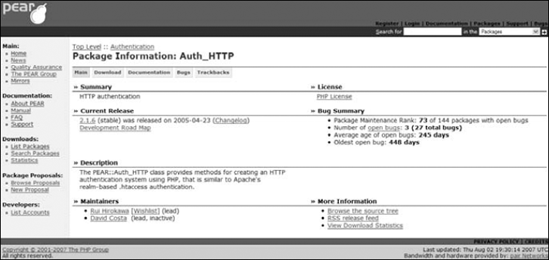
Point your Web browser to the PEAR package browser at http://pear.php.net/packages.php and browse until you find the package that fits your needs. Take note of the package name, as shown in Figure 2-3.
Open a command line window (in Windows) or a shell (in Linux/Unix/Mac) and type the following command:
pear install package_name
If the package you want to use has a state other than stable, you have to force the installation in one of the following ways:
Use the –beta flag:
pear install package_name-beta
Set the preferred state by using the config-set command:
pear config-set preferred_state beta
pear install package_name
pear config-set preferred_state stable
Set the preferred state by using the -d switch:
pear -d preferred_state=beta install package_name
Brute force the installation:
pear install -f package_name
You just have to get the installation started and relax — the PEAR command line installer takes care of the rest of the details.
If you don't want to install a package immediately, or if you need ...
Read now
Unlock full access


 O’Reilly covers everything we've got, with content to help us build a world-class technology community, upgrade the capabilities and competencies of our teams, and improve overall team performance as well as their engagement.I wanted to learn C and C++, but it didn't click for me until I picked up an O'Reilly book. When I went on the O’Reilly platform, I was astonished to find all the books there, plus live events and sandboxes so you could play around with the technology.I’ve been on the O’Reilly platform for more than eight years. I use a couple of learning platforms, but I'm on O'Reilly more than anybody else. When you're there, you start learning. I'm never disappointed.I'm always learning. So when I got on to O'Reilly, I was like a kid in a candy store. There are playlists. There are answers. There's on-demand training. It's worth its weight in gold, in terms of what it allows me to do.