May 2011
Beginner
560 pages
15h 25m
English
You can add variety to your blocks by making them dynamic. The two most useful applications for dynamic blocks are multiple presentations of similar objects and manipulation of components within individual block inserts.
AutoCAD's dynamic blocks feature gives a great deal of flexibility to block creation and insertion. But it's also a very complicated system, with its own set of commands and system variables. I recommend that you become very familiar with regular block creation and insertion techniques for creating and inserting blocks (which I describe in Chapter 17) before you tackle dynamic blocks.
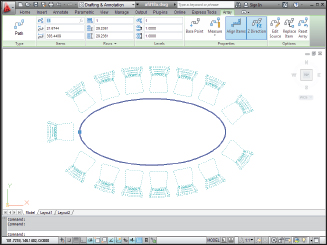
Figure 18-3: Editing after the fact with the Array contextual Ribbon tab.
 Spend some time planning your dynamic blocks. Sketch out the geometry for each variation in appearance (or visibility state) and decide where the common base point should be. Unless you're a lot smarter than I am, you'll probably find that creating dynamic blocks is complex enough without trying to design your blocks as you go.
If your drawing shows six different kinds of windows, one approach is to create six different standard blocks to represent them all. Alternatively, you can create a single dynamic block and define visibility states to cover all six ...
Read now
Unlock full access


 O’Reilly covers everything we've got, with content to help us build a world-class technology community, upgrade the capabilities and competencies of our teams, and improve overall team performance as well as their engagement.I wanted to learn C and C++, but it didn't click for me until I picked up an O'Reilly book. When I went on the O’Reilly platform, I was astonished to find all the books there, plus live events and sandboxes so you could play around with the technology.I’ve been on the O’Reilly platform for more than eight years. I use a couple of learning platforms, but I'm on O'Reilly more than anybody else. When you're there, you start learning. I'm never disappointed.I'm always learning. So when I got on to O'Reilly, I was like a kid in a candy store. There are playlists. There are answers. There's on-demand training. It's worth its weight in gold, in terms of what it allows me to do.