July 2005
Intermediate to advanced
866 pages
29h 18m
English
In designing Mac OS X, one of Apple's key goals was to address the window-proliferation problem. As you create more files, stash them in more folders, and launch more programs, it's easy to wind up paralyzed before a screen awash with cluttered, overlapping rectangles.
That's the problem addressed by Exposé, an innovative and useful feature that's probably worth at least $34 of Mac OS X's $130 price. It's described in detail on Section 5.3.
There are some handy clutter and navigation controls on the windows themselves, too. For example:
The Sidebar is the pane at the left side of every Finder window, unless you've hidden it (and, by the way, also at the left side of every full-sized Save and Open dialog box). It lists places where you might look for files and folders—that is, disks, folders, and network disks. Above the horizontal divider, you get the icons for your hard drives, iPods, memory cards, CDs, flash drives, and other removable goodies. Below the divider, you can stick the icons of anything else: files, programs, folders, or whatever.
Each icon is a shortcut. For example, click the Applications icon to view the contents of your Applications folder in the main part of the window (Figure 1-3). And if you click the icon of a file or program, it opens.
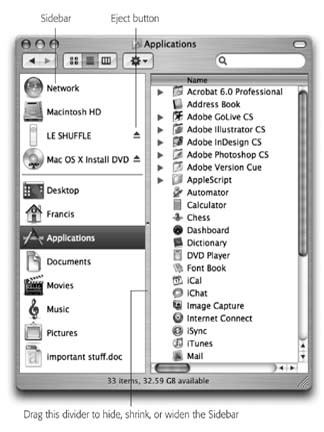
Figure 1-3. The Sidebar makes navigation very quick, because you can jump back and forth ...
Read now
Unlock full access


 O’Reilly covers everything we've got, with content to help us build a world-class technology community, upgrade the capabilities and competencies of our teams, and improve overall team performance as well as their engagement.I wanted to learn C and C++, but it didn't click for me until I picked up an O'Reilly book. When I went on the O’Reilly platform, I was astonished to find all the books there, plus live events and sandboxes so you could play around with the technology.I’ve been on the O’Reilly platform for more than eight years. I use a couple of learning platforms, but I'm on O'Reilly more than anybody else. When you're there, you start learning. I'm never disappointed.I'm always learning. So when I got on to O'Reilly, I was like a kid in a candy store. There are playlists. There are answers. There's on-demand training. It's worth its weight in gold, in terms of what it allows me to do.