January 2002
Beginner
768 pages
25h 51m
English
Normally the
size of the Button is automatically determined by the application and
is dependent on the text string or image displayed in the Button. The
width and height can be specified explicitly by using the
-width and -height options:
-width =>x, -height =>y
The values specified for x and
y vary depending on whether a bitmap/image
or text is displayed in the Button. When a bitmap or image is
displayed, the values in x and
y represent valid screen distances. If
text is displayed on the Button, x and
y are character sizes.
This example shows one Button that is the default size and another
drawn with -width of 10 and
-height of 10. (It is not necessary that the
amounts for -width and -height
be the same or that you use both options.)
$mw->Button(-text => "Exit",
            -command => sub { exit })->pack(-side => 'left');
$mw->Button(-text => "Exit",
            -width => 10, -height => 10,
            -command => sub { exit })->pack(-side => 'left');
In Figure 4-28, which illustrates this example, the second Button is much taller than it is wide, because text characters are taller than they are wide.
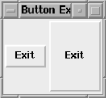
Figure 4-28. Default -width and -height (left) versus Button with -width and -height set (right)
The values specified for both
-width and -height are
characters, because the Button is displaying text. When
-width and -height are used with a bitmap, the amount specified is in screen distance. ...
Read now
Unlock full access


 O’Reilly covers everything we've got, with content to help us build a world-class technology community, upgrade the capabilities and competencies of our teams, and improve overall team performance as well as their engagement.I wanted to learn C and C++, but it didn't click for me until I picked up an O'Reilly book. When I went on the O’Reilly platform, I was astonished to find all the books there, plus live events and sandboxes so you could play around with the technology.I’ve been on the O’Reilly platform for more than eight years. I use a couple of learning platforms, but I'm on O'Reilly more than anybody else. When you're there, you start learning. I'm never disappointed.I'm always learning. So when I got on to O'Reilly, I was like a kid in a candy store. There are playlists. There are answers. There's on-demand training. It's worth its weight in gold, in terms of what it allows me to do.