December 2007
Beginner
912 pages
31h 8m
English
Printer sharing is for people (or offices) with more than one Mac, connected to a network, who'd rather not buy a separate printer for each machine. Instead, you connect the printer to one Mac, flip a couple of software switches, and then boom: The other Macs on the network can send their printouts to the printer without actually being attached to it—even wirelessly attached, if they're on an AirPort network.
Of course, this feature is most useful when you're sharing printers that can hook up to only one Mac at a time, like USB inkjet photo printers. Office laser printers are often designed to be networked from Day One.
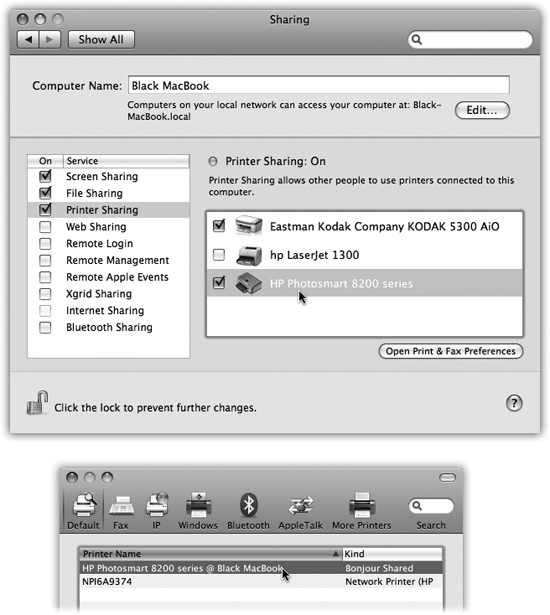
Figure 14-5. Top: On the Mac with the printer, open the Sharing panel of System Preferences. Turn on Printer Sharing. Turn on the checkbox for the printer(s) you want to share. Bottom: To use a shared printer elsewhere on the network, open the document you want to print, and then choose File→Print. In the Print dialog box, choose Add Printer. The shared printer is clearly identified; click it and click Add, just as you'd add any printer (Figure 14-1). From now on, it shows up in the Printer pop-up menu just like any other printer.
Setting up printer sharing is easy; see Figure 14-5, top. Then, to make a printout from across the network, see the instructions in Figure 14-5, bottom.
If your PC-wielding friends install Bonjour for Windows (a free download ...
Read now
Unlock full access


 O’Reilly covers everything we've got, with content to help us build a world-class technology community, upgrade the capabilities and competencies of our teams, and improve overall team performance as well as their engagement.I wanted to learn C and C++, but it didn't click for me until I picked up an O'Reilly book. When I went on the O’Reilly platform, I was astonished to find all the books there, plus live events and sandboxes so you could play around with the technology.I’ve been on the O’Reilly platform for more than eight years. I use a couple of learning platforms, but I'm on O'Reilly more than anybody else. When you're there, you start learning. I'm never disappointed.I'm always learning. So when I got on to O'Reilly, I was like a kid in a candy store. There are playlists. There are answers. There's on-demand training. It's worth its weight in gold, in terms of what it allows me to do.