December 2007
Beginner
912 pages
31h 8m
English
You can also connect to your Mac's regular File Sharing feature (Chapter 13) from over the Internet. This feature is a blessing to anyone who travels, whether with a laptop or to a branch office, because you'll never be up the creek without a paddle if you discover that you left an important file at home.
The easiest way to go about it is to use Back to My Mac (Screen Sharing with Back to My Mac), which is one of Apple's $100-a-year .Mac services.
If you'd rather spend time than money, though, you can set up a remote-file-sharing system on your own. Start by setting up the home-base Mac for file sharing, as directed in Chapter 13; then figure out your Mac's public IP address, as described in the box on Web Sharing.
Finally, once you're on the road, go online and proceed like this:
Choose Go → Connect to Server.
The Connect to Server dialog box appears, as shown in Figure 22-4.
Type in the public IP address of the Mac to which you want to connect, and then click Connect (or press Enter).
See the box on Web Sharing for a discussion of public vs. private IP addresses.
Enter your name and password, and then click Connect.
From here, it's just as though you were connecting to another computer on your office network (Chapter 13), although it's a good bit slower. But when you're in Hong Kong and need a document from your Mac in Minneapolis, you may not care.
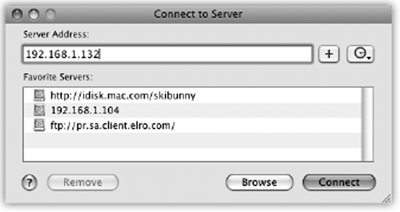
Figure 22-4. The ...
Read now
Unlock full access


 O’Reilly covers everything we've got, with content to help us build a world-class technology community, upgrade the capabilities and competencies of our teams, and improve overall team performance as well as their engagement.I wanted to learn C and C++, but it didn't click for me until I picked up an O'Reilly book. When I went on the O’Reilly platform, I was astonished to find all the books there, plus live events and sandboxes so you could play around with the technology.I’ve been on the O’Reilly platform for more than eight years. I use a couple of learning platforms, but I'm on O'Reilly more than anybody else. When you're there, you start learning. I'm never disappointed.I'm always learning. So when I got on to O'Reilly, I was like a kid in a candy store. There are playlists. There are answers. There's on-demand training. It's worth its weight in gold, in terms of what it allows me to do.