June 2012
Beginner
227 pages
5h 43m
English
The Terminal is simple to run. Visit your Mac’s Utilities folder, locate the Terminal icon, and launch it. A Terminal window will appear, as in Figure 1-3, ready for your commands. If you run Terminal often, place its icon into the application dock for convenience.
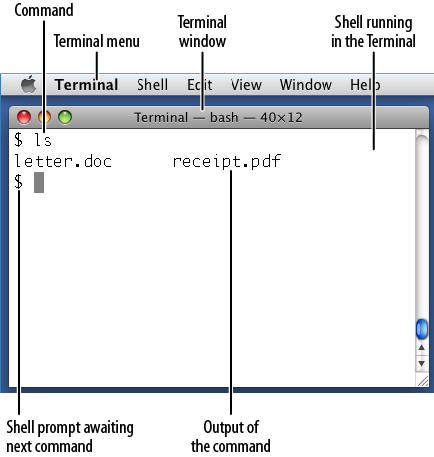
If you’re already running the Terminal, its Shell menu provides several ways to work with shells, shown in Figure 1-4:

Open a Terminal window running a shell.
In the current Terminal window, which is already running a shell, open another tab with its own shell. (Similar to the tabs in web browsers such as Firefox and Safari.)
Run a single command in a shell, then terminate the shell. This feature opens a Terminal window and leaves it hanging around, useless, after the shell is finished. We don’t see much point to this feature.
The Terminal is the standard method for running shells on the Mac desktop, but it’s not the only way. You can also log in to a Macintosh remotely from another computer. We’ll cover this advanced topic in Running a Shell Remotely.
Read now
Unlock full access


 O’Reilly covers everything we've got, with content to help us build a world-class technology community, upgrade the capabilities and competencies of our teams, and improve overall team performance as well as their engagement.I wanted to learn C and C++, but it didn't click for me until I picked up an O'Reilly book. When I went on the O’Reilly platform, I was astonished to find all the books there, plus live events and sandboxes so you could play around with the technology.I’ve been on the O’Reilly platform for more than eight years. I use a couple of learning platforms, but I'm on O'Reilly more than anybody else. When you're there, you start learning. I'm never disappointed.I'm always learning. So when I got on to O'Reilly, I was like a kid in a candy store. There are playlists. There are answers. There's on-demand training. It's worth its weight in gold, in terms of what it allows me to do.