April 2007
Intermediate to advanced
551 pages
12h 9m
English
Once you have installed Windows PowerShell, you have several options for starting it.
To start PowerShell without using any profile file to customize its behavior, open a command window (On Windows 2003, select Start  All Programs
  Accessories
  Command Prompt), then type:
%SystemRoot%\system32\WindowsPowerShell\v1.0\powershell.exe -NoProfile
After a short pause, the Windows PowerShell prompt should appear (see Figure 1-7).

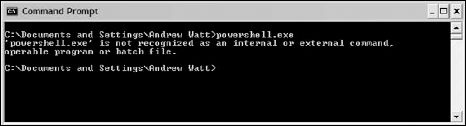
If you are still using a Release Candidate and attempt to start PowerShell by simply typing PowerShell.exe at the command shell prompt, you may see the error message shown in Figure 1-8. To fix that, update to the final release version.
Alternatively, you can start PowerShell by selecting Start  All Programs Windows PowerShell 1.0 Windows PowerShell (see ...
Read now
Unlock full access


 O’Reilly covers everything we've got, with content to help us build a world-class technology community, upgrade the capabilities and competencies of our teams, and improve overall team performance as well as their engagement.I wanted to learn C and C++, but it didn't click for me until I picked up an O'Reilly book. When I went on the O’Reilly platform, I was astonished to find all the books there, plus live events and sandboxes so you could play around with the technology.I’ve been on the O’Reilly platform for more than eight years. I use a couple of learning platforms, but I'm on O'Reilly more than anybody else. When you're there, you start learning. I'm never disappointed.I'm always learning. So when I got on to O'Reilly, I was like a kid in a candy store. There are playlists. There are answers. There's on-demand training. It's worth its weight in gold, in terms of what it allows me to do.