May 2020
Beginner to intermediate
634 pages
15h 49m
English
In Chapter 90, I share how to make a timeline in Tableau even when events/marks overlap. One of my favorite applications of a timeline chart is to show my audience when key events occurred in the business that might be affecting performance. As an analyst, I often see large peaks and valleys on trend lines, but they’re rarely accompanied by direct context on what might have caused the changes.
With the ability to make worksheet backgrounds transparent, we can now add a timeline directly to a line graph or area chart to provide that meaningful context. Again, this provides a professional design while also serving a practical purpose.
Suppose that we have added this trend to our dashboard:
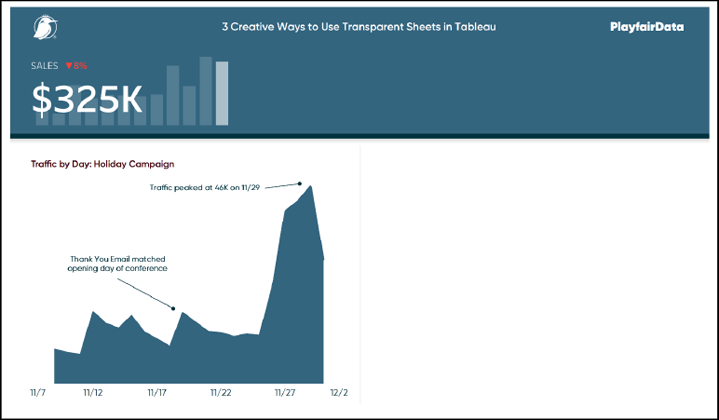
By adding annotations, this trend has already been improved. We see when traffic peaked, which is an alternative way to display the y-axis range, and we also see one bit of marketing context. Even though this chart is helpful, let’s make it even better by adding a timeline of key events on top of the trend. After all, this chart represents our critical Tableau Conference and Black Friday marketing push, so it makes sense to let our stakeholders know which marketing tactics were in play during this period.
Here’s how the chart looks after we add the jittered timeline view ...
Read now
Unlock full access


 O’Reilly covers everything we've got, with content to help us build a world-class technology community, upgrade the capabilities and competencies of our teams, and improve overall team performance as well as their engagement.I wanted to learn C and C++, but it didn't click for me until I picked up an O'Reilly book. When I went on the O’Reilly platform, I was astonished to find all the books there, plus live events and sandboxes so you could play around with the technology.I’ve been on the O’Reilly platform for more than eight years. I use a couple of learning platforms, but I'm on O'Reilly more than anybody else. When you're there, you start learning. I'm never disappointed.I'm always learning. So when I got on to O'Reilly, I was like a kid in a candy store. There are playlists. There are answers. There's on-demand training. It's worth its weight in gold, in terms of what it allows me to do.