May 2020
Beginner to intermediate
634 pages
15h 49m
English
One of the reasons I like to use scatter plots is because they create a natural, four-quadrant segmentation. If you add a reference line on both the y-axis and x-axis, each mark will fall into one of four boxes. This becomes very actionable because each segment has different attributes (e.g., high sales/low profit, high profit/low sales, etc.) that you can treat differently.
Chapter 23 shows you that you can write a calculated field to color the marks based on which of the four segments they’re in—but what if you want to use the mark color to represent something else? You can change the color above and below a reference line, but you cannot use four different colors.
Now, with transparent sheets, we can. This technique works best with fixed size worksheets that have already been added to a dashboard.
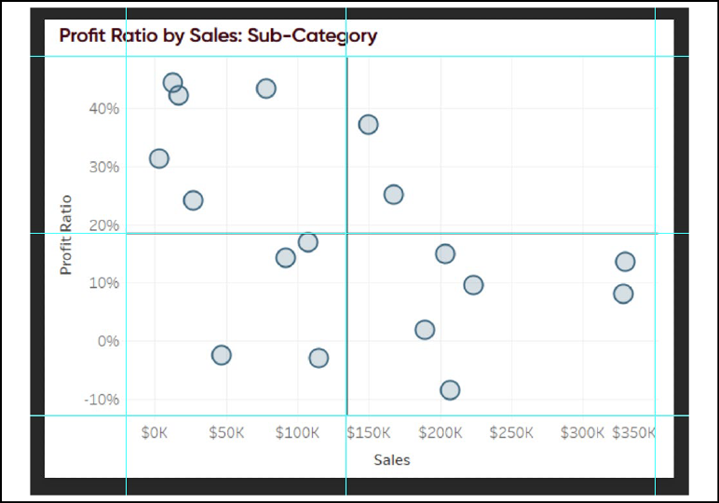
First, take a screenshot of the chart and copy and paste the image into PowerPoint or Photoshop:
Next, draw a colored square around each area that you want represented as a segment. Add transparency to the colors so that you can see how they will look on the scatter plot. You can add transparency in Photoshop by clicking the layer and reducing the opacity of the layer. In PowerPoint, click the shape and then navigate to Format > Shape Fill > More Fill Colors > Transparency. ...
Read now
Unlock full access


 O’Reilly covers everything we've got, with content to help us build a world-class technology community, upgrade the capabilities and competencies of our teams, and improve overall team performance as well as their engagement.I wanted to learn C and C++, but it didn't click for me until I picked up an O'Reilly book. When I went on the O’Reilly platform, I was astonished to find all the books there, plus live events and sandboxes so you could play around with the technology.I’ve been on the O’Reilly platform for more than eight years. I use a couple of learning platforms, but I'm on O'Reilly more than anybody else. When you're there, you start learning. I'm never disappointed.I'm always learning. So when I got on to O'Reilly, I was like a kid in a candy store. There are playlists. There are answers. There's on-demand training. It's worth its weight in gold, in terms of what it allows me to do.