March 2012
Intermediate to advanced
244 pages
5h 3m
English
Progress bars allow you to view the progress of a task, such as transferring a file. jQuery UI can handle them easily.
Suppose we want to write the HTML code to display the progress bar shown in Figure 6-1. This is a container that will gradually fill in to indicate the progress of a task (for the moment, it is almost empty and will start to fill in from the left side).
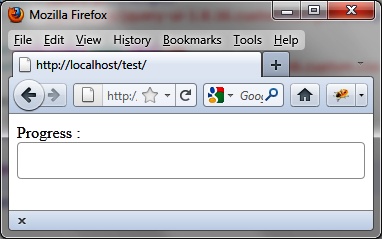
Figure 6-1. Progress bar
As required by jQuery UI, we represent the progress bar with a
<div> element (shown in
bold):
<script src = jquery.js></script>
<script src = jqueryui/js/jquery-ui-1.8.16.custom.min.js></script>

<link rel=stylesheet type=text/css
      href=jqueryui/css/smoothness/jquery-ui-1.8.16.custom.css />

Progress : <div id=progressbar></div>

<script>

$("div#progressbar").progressbar ();

</script>
This indicates that each <div> element corresponding to the
progress bar is managed by the jQuery UI progressbar () method.
Figure 6-2 shows an
example of the HTML generated by jQuery UI once modified by the progressbar () instruction (this code was
recovered using the Firebug extension in Firefox).
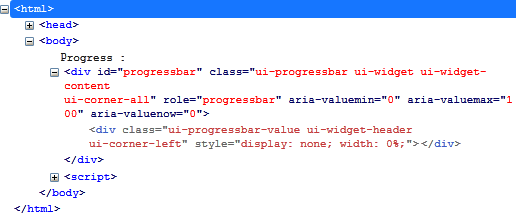
Figure 6-2. HTML code generated by the progressbar () method
Again, it is possible to use CSS classes of elements to customize the display. For example, ...
Read now
Unlock full access


 O’Reilly covers everything we've got, with content to help us build a world-class technology community, upgrade the capabilities and competencies of our teams, and improve overall team performance as well as their engagement.I wanted to learn C and C++, but it didn't click for me until I picked up an O'Reilly book. When I went on the O’Reilly platform, I was astonished to find all the books there, plus live events and sandboxes so you could play around with the technology.I’ve been on the O’Reilly platform for more than eight years. I use a couple of learning platforms, but I'm on O'Reilly more than anybody else. When you're there, you start learning. I'm never disappointed.I'm always learning. So when I got on to O'Reilly, I was like a kid in a candy store. There are playlists. There are answers. There's on-demand training. It's worth its weight in gold, in terms of what it allows me to do.