June 2012
Beginner to intermediate
256 pages
5h 10m
English
Power filter: Filtering by specific criteria
As its name suggests, the power filter (shown in Figure 10-7) is a more powerful tool.
Figure 10-7: Power filter dialogue box in Mind-Manager.
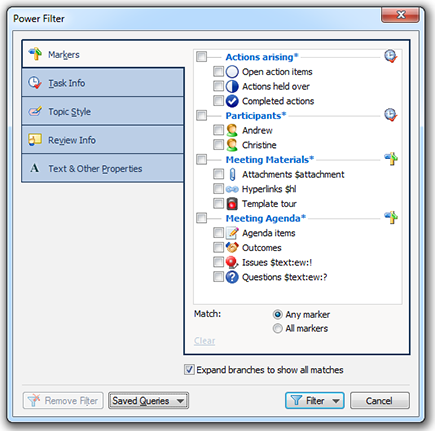
The power filter allows you to filter information in a Mind Map according to different criteria.
These are:
 Highlighting: You can filter with the icons provided by MindManager. If you activate the power filter function, all icons currently being used in the Mind Map are displayed in the Highlighting tab. For example, you can display or fade out any branches containing the exclamation mark symbol (see Figure 10-7).
Task info: You can assign relevant data like start date, end date and task priority to each branch for project management via the Task info tab. You can then filter the assigned data in the power filter dialogue box via the Task info tab. For example, you can display all branches to be actioned by the end of the week.
Branch style: This function enables you to filter different branch templates from the template store.
Revision info: Just like Microsoft Word, MindManager has a revision ...
Read now
Unlock full access


 O’Reilly covers everything we've got, with content to help us build a world-class technology community, upgrade the capabilities and competencies of our teams, and improve overall team performance as well as their engagement.I wanted to learn C and C++, but it didn't click for me until I picked up an O'Reilly book. When I went on the O’Reilly platform, I was astonished to find all the books there, plus live events and sandboxes so you could play around with the technology.I’ve been on the O’Reilly platform for more than eight years. I use a couple of learning platforms, but I'm on O'Reilly more than anybody else. When you're there, you start learning. I'm never disappointed.I'm always learning. So when I got on to O'Reilly, I was like a kid in a candy store. There are playlists. There are answers. There's on-demand training. It's worth its weight in gold, in terms of what it allows me to do.