January 2009
Intermediate to advanced
549 pages
12h 59m
English
Generally speaking, backup and restore are used for disaster recovery scenarios. There are other, more effective ways to move and re-use designs from one environment to another. Templates allow you to save your customizations — and even initial data — into a single file. Solution Packages provide an installation mechanism for virtually any kind of server-side SharePoint module.
The easiest way to get a design from one environment into another is to incorporate it into a SharePoint Template. Templates allow you to easily save most lists, libraries, and sites in SharePoint Template Package (.STP) files.
Although SharePoint has several built-in list and library types, very often you will customize a list. You may add fields, views, and default content that you want to re-use in other sites. To save a list as a template:
Navigate to a view of the list that contains the list toolbar.
Choose Settings  List Settings.
In the Permissions and Management section of the header, select Save List As Template.
Enter appropriate descriptive text in the form (see Figure 18-13).
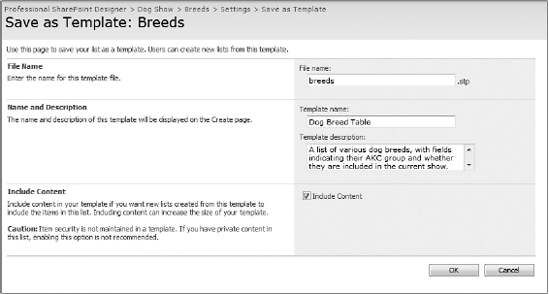
If you want to save only the schema of the list (fields, views, and so on), leave the Include Content ...
Read now
Unlock full access


 O’Reilly covers everything we've got, with content to help us build a world-class technology community, upgrade the capabilities and competencies of our teams, and improve overall team performance as well as their engagement.I wanted to learn C and C++, but it didn't click for me until I picked up an O'Reilly book. When I went on the O’Reilly platform, I was astonished to find all the books there, plus live events and sandboxes so you could play around with the technology.I’ve been on the O’Reilly platform for more than eight years. I use a couple of learning platforms, but I'm on O'Reilly more than anybody else. When you're there, you start learning. I'm never disappointed.I'm always learning. So when I got on to O'Reilly, I was like a kid in a candy store. There are playlists. There are answers. There's on-demand training. It's worth its weight in gold, in terms of what it allows me to do.