June 2005
Intermediate to advanced
464 pages
13h 2m
English
You want to see, and possibly change, the permissions currently in effect on a public folder.
To view or change permissions, do the following:
Launch the Exchange System Manager (Exchange System Manager.msc).
In the left pane, expand the appropriate Administrative Groups container.
Expand the Folders and Public Folders nodes.
Right-click the folder you want and select Properties.
Switch to the Permissions tab and use one of the following three buttons:
To control which users have permissions to create or modify items in the folder, and to assign roles to users, click the Client permissions button. You'll get the dialog box shown in Figure 9-1, from which you can assign granular user-specific permissions.
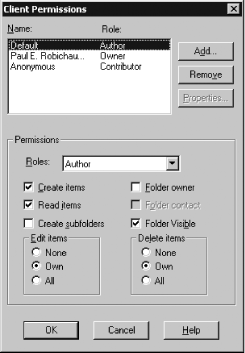
Figure 9-1. The Client Permissions dialog box lets you assign permissions for individual users on a public folder
To control permissions on the public folder object in Active Directory (AD), click the Directory rights button; this displays the standard Windows ACL editor (see Figure 9-2). You will seldom need to do this; although, in some rare cases, it might be necessary to reset the permissions granted to the Exchange Domain Servers and Exchange Enterprise Servers groups.
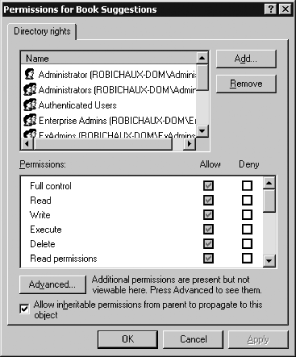
Figure 9-2. Assign ...
Read now
Unlock full access


 O’Reilly covers everything we've got, with content to help us build a world-class technology community, upgrade the capabilities and competencies of our teams, and improve overall team performance as well as their engagement.I wanted to learn C and C++, but it didn't click for me until I picked up an O'Reilly book. When I went on the O’Reilly platform, I was astonished to find all the books there, plus live events and sandboxes so you could play around with the technology.I’ve been on the O’Reilly platform for more than eight years. I use a couple of learning platforms, but I'm on O'Reilly more than anybody else. When you're there, you start learning. I'm never disappointed.I'm always learning. So when I got on to O'Reilly, I was like a kid in a candy store. There are playlists. There are answers. There's on-demand training. It's worth its weight in gold, in terms of what it allows me to do.