January 2011
Beginner to intermediate
384 pages
15h 36m
English
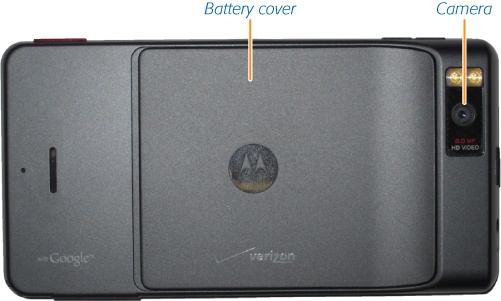
Flip the Droid X over, and you’ll find the battery cover. Yes, that’s right, an actual battery cover—you can remove the Droid X battery and replace it with a new one, unlike some other cellphones. To remove the battery, slide down the battery cover, and then pull up gently on the plastic tab under the left corner of the battery. Don’t pull it hard or yank it, and don’t cut the tab. You can now lift out the battery.
Before removing the battery, make sure to turn the Droid X’s power off via the Power/Lock key.
To replace the battery, simply put it back into place, making sure that the tab doesn’t get stuck underneath the battery. The tab has to be sticking out so that you can use it to dislodge the battery when you want to remove it. After you’ve put the battery back in place, slide the battery door back over it. Now turn on the Droid X.
Near the battery, you’ll also find what stores most of the Droid X’s memory: the MicroSD card, which is about the size of a fingernail, and much smaller than the normal SD memory cards used in cameras. This card may be small, but it’s got a lot of capacity—a full 16 GB worth.
The Droid X has memory in two places—in the phone itself, and on the MicroSD card. To see how much memory you’ve got left in both, tap the Menu key from the Home screen, and then tap “SD card & phone storage”.
In the SD card section, you can see how ...
Read now
Unlock full access


 O’Reilly covers everything we've got, with content to help us build a world-class technology community, upgrade the capabilities and competencies of our teams, and improve overall team performance as well as their engagement.I wanted to learn C and C++, but it didn't click for me until I picked up an O'Reilly book. When I went on the O’Reilly platform, I was astonished to find all the books there, plus live events and sandboxes so you could play around with the technology.I’ve been on the O’Reilly platform for more than eight years. I use a couple of learning platforms, but I'm on O'Reilly more than anybody else. When you're there, you start learning. I'm never disappointed.I'm always learning. So when I got on to O'Reilly, I was like a kid in a candy store. There are playlists. There are answers. There's on-demand training. It's worth its weight in gold, in terms of what it allows me to do.