Working with Macros
Office includes three different tools for working with macros, each
specialized for a particular use. The Macro
Editor is good for viewing simple macros and deleting
them. The Organizer, only available in Word, is
the best tool for viewing macros and style formats within templates.
The Visual Basic Editor first appeared with
Office 97 and is best for viewing and editing VBA macros. Different
types of macros will appear in different tools. Macro viruses will
often attempt to hide from these tools; it’s possible for a
document to be infected even if a macro is not found.
Macro
Editor
You can view the active macros applying against a document with the
Macro Editor
by choosing
Tools
→
Macro
→
Macros.
The Macros dialog box will reveal macros and allow you to edit or
delete them. Figure 5-1 shows a template previously
infected by the Concept virus and displays a leftover macro named
PayLoad. The word “payload” should be an indication that
a mischievous macro is present.
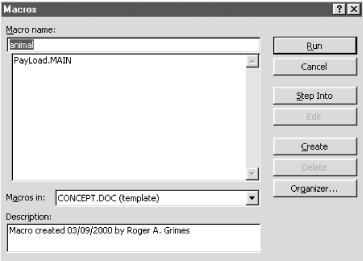
Figure 5-1. The Macros dialog box
You can use the Macro Editor to highlight suspicious macros and
delete them. Macros written as class modules (discussed in Section 5.6) will not appear. If you choose
the Edit button, you will be taken to the
Visual Basic Editor
. The Organizer
button will take you to the Organizer.
Organizer
The Organizer (see Figure 5-2) can be used to view, copy, and delete macros, ...
Get Malicious Mobile Code now with the O’Reilly learning platform.
O’Reilly members experience books, live events, courses curated by job role, and more from O’Reilly and nearly 200 top publishers.