October 2005
Beginner
512 pages
15h 41m
English
Selecting your whole picture is all very well and good, but many times your reason for making a selection is precisely because you don't want to make changes to the whole image. How do you select just part of the picture?
Well, the easiest way is to use the Marquee tools. You already made the acquaintance of the Rectangular Marquee tool back in Chapter 3, in the section on cropping (Section 3.4.3). If you want to select a block of your image or a circle or an oval from it, the Marquee tools are the way to go. As the winners of "Most frequently used Selection tools," they get top spot in the Selection area of the Editor's Toolbox. You can modify how they work, like telling them to create a square instead of a rectangle, as explained in Figure 5-2.
To use the Marquee tools to make a selection:
Press M or click the Marquee tool's icon in the Toolbox to activate it.
The Marquee tool is the little dotted square right below the Eyedropper icon.
Choose the Shape you want to draw: rectangle or ellipse.
In the Options bar or in the Toolbox pop-out menu for the Marquee tools, choose the rectangle or the ellipse to set the shape.
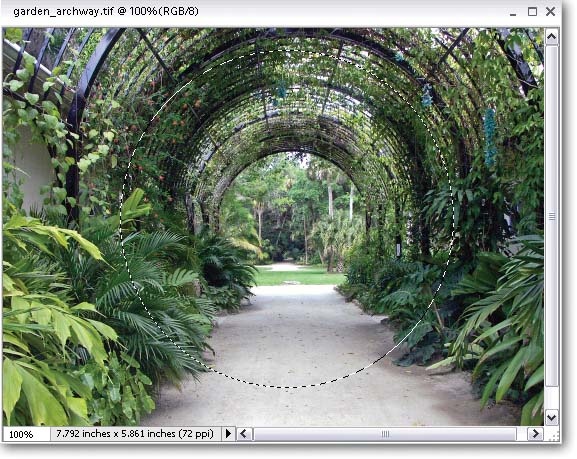
Figure 5-2. The Marquee tools usually make oval or rectangular selections. To make a perfectly circular or square selection, hold down the Shift key while you drag. (If you're in the Elliptical marquee, it's a perfect circle; in ...
Read now
Unlock full access


 O’Reilly covers everything we've got, with content to help us build a world-class technology community, upgrade the capabilities and competencies of our teams, and improve overall team performance as well as their engagement.I wanted to learn C and C++, but it didn't click for me until I picked up an O'Reilly book. When I went on the O’Reilly platform, I was astonished to find all the books there, plus live events and sandboxes so you could play around with the technology.I’ve been on the O’Reilly platform for more than eight years. I use a couple of learning platforms, but I'm on O'Reilly more than anybody else. When you're there, you start learning. I'm never disappointed.I'm always learning. So when I got on to O'Reilly, I was like a kid in a candy store. There are playlists. There are answers. There's on-demand training. It's worth its weight in gold, in terms of what it allows me to do.