October 2009
Beginner
208 pages
4h 41m
English
In Windows XP and Windows Vista, you have special folders named “My Documents,” “My Pictures,” and so on for storing your files. However, not many people actively used these folders for storing their personal data. Instead, people created their own folders, with names like C:\My project June 2008 and C:\photos\Photos from Japan trip 2007. Although there is nothing wrong with this approach, it makes indexing and searching very time-consuming, not to mention frustrating.
In Windows 7, Microsoft has attempted to address this problem with the concept of Libraries. Conceptually, Libraries are a central repository of all the various folders on your computer. To search for files in your computer, go to the Libraries and navigate the various subfolders contained within it. You can still create an assortment of folders, but you can avoid the chaos by adding a folder to one of your libraries.
The Libraries are found in Windows Explorer. Figure 2-10 shows the application with its four default libraries—Documents, Music, Pictures, and Videos.
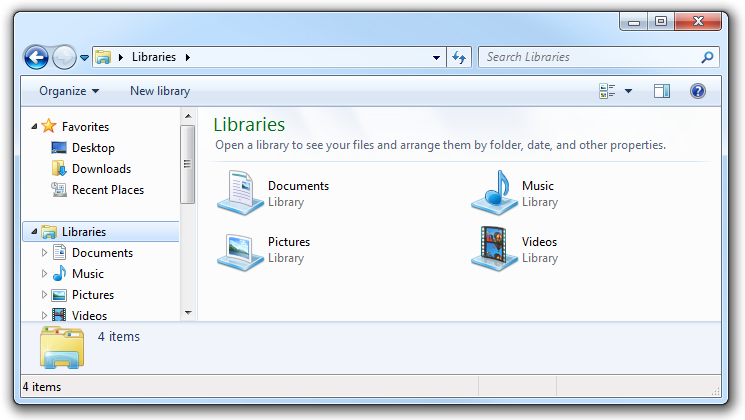
Figure 2-10. The Libraries in Windows Explorer
When you click the arrow to the left of the Documents library (or double-click its icon), you will observe that there are two folders contained within it (see Figure 2-11): My Documents and Public Documents. These two folders are actual folders located elsewhere on your computer.
Figure 2-11. The ...
Read now
Unlock full access


 O’Reilly covers everything we've got, with content to help us build a world-class technology community, upgrade the capabilities and competencies of our teams, and improve overall team performance as well as their engagement.I wanted to learn C and C++, but it didn't click for me until I picked up an O'Reilly book. When I went on the O’Reilly platform, I was astonished to find all the books there, plus live events and sandboxes so you could play around with the technology.I’ve been on the O’Reilly platform for more than eight years. I use a couple of learning platforms, but I'm on O'Reilly more than anybody else. When you're there, you start learning. I'm never disappointed.I'm always learning. So when I got on to O'Reilly, I was like a kid in a candy store. There are playlists. There are answers. There's on-demand training. It's worth its weight in gold, in terms of what it allows me to do.