October 2009
Beginner
208 pages
4h 41m
English
One of the most fiercely criticized features of Windows Vista is the User Account Control (UAC). Whenever a system-level change is made, Vista’s UAC displays a dialog box prompting the user to continue or stop. This happens regardless of whether it is a program that is making the changes or the user herself (even though she might be logged in as an administrator). And with the frequency that the UAC displays prompts, most users find it a nuisance rather than a useful security alert feature. Moreover, when the user ends up with too many UAC prompts, it actually defeats the purpose, as users simply give their permission without reading the prompts.
In Windows Vista, Microsoft only provided two options to control UAC—turn it on or turn it off. In Windows 7, Microsoft has fine-tuned the UAC so that you can choose when to be notified if changes happen.
To configure UAC, go to Control Panel and select User Accounts and Family Safety, and then select User Accounts. Click the Change User Account Control settings link.
Notice that you now have four levels to specify how you are notified when changes are made to your computer (see Figure 4-7).
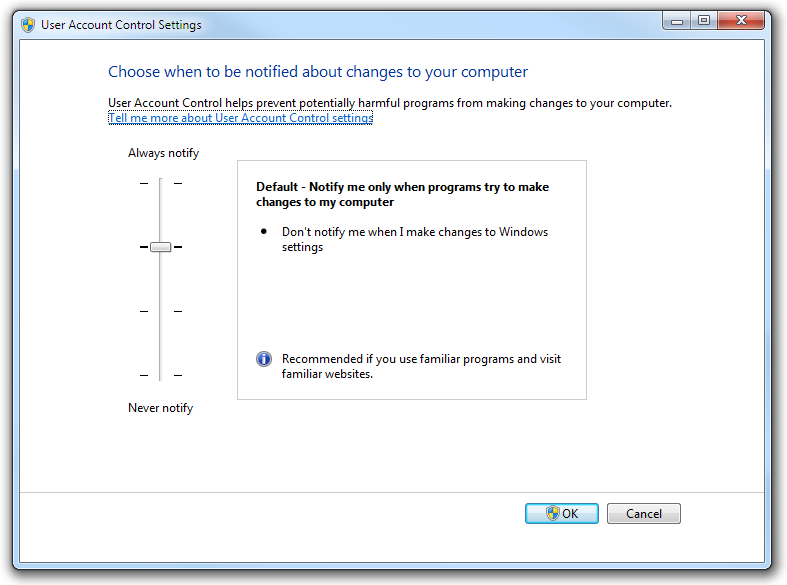
Figure 4-7. Modifying the notification levels of UAC
The four levels are:
Always notify when programs install software or users make changes to the computer. This is the most naggy option, as all changes require the permission of the user ...
Read now
Unlock full access


 O’Reilly covers everything we've got, with content to help us build a world-class technology community, upgrade the capabilities and competencies of our teams, and improve overall team performance as well as their engagement.I wanted to learn C and C++, but it didn't click for me until I picked up an O'Reilly book. When I went on the O’Reilly platform, I was astonished to find all the books there, plus live events and sandboxes so you could play around with the technology.I’ve been on the O’Reilly platform for more than eight years. I use a couple of learning platforms, but I'm on O'Reilly more than anybody else. When you're there, you start learning. I'm never disappointed.I'm always learning. So when I got on to O'Reilly, I was like a kid in a candy store. There are playlists. There are answers. There's on-demand training. It's worth its weight in gold, in terms of what it allows me to do.