Perform the following steps:
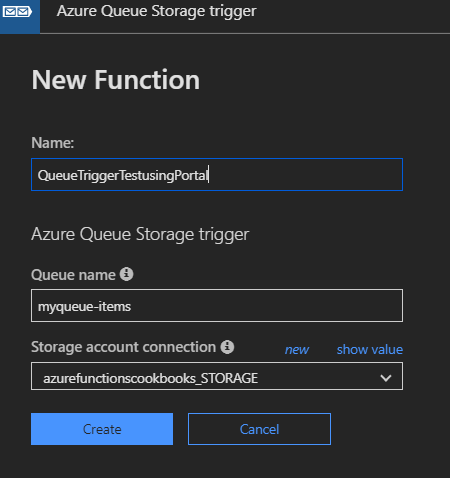
- Create a new Azure Storage Queue trigger named QueueTriggerTestusingPortal, as shown in the following screenshot. Take note of the Queue name, myqueue-items, as we need to create a Queue service with the same name later using the Azure Management portal:
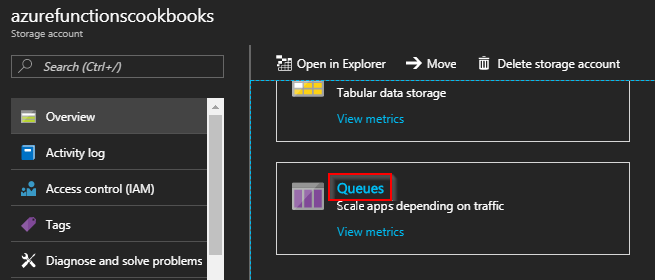
- Navigate to the storage account's Overview blade and click on Queues, as shown in the following screenshot:
- In the Queue service blade, click on Queue to add a new Queue:
- Provide myqueue-items