September 2011
Beginner
444 pages
12h 13m
English
This section lets you change the language you use, as well as various input options.
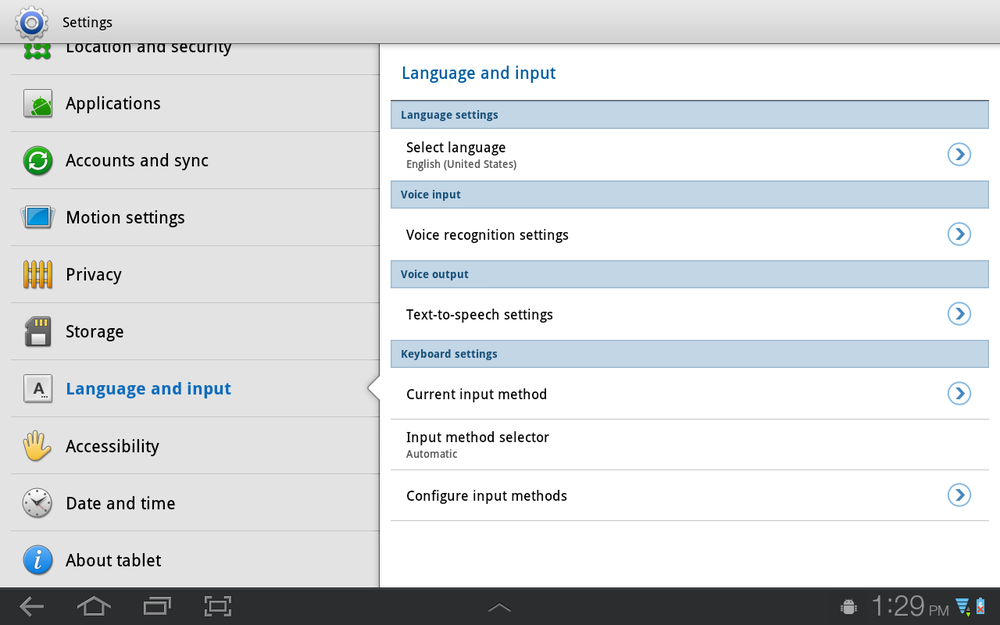
The Language settings section has one setting:
Select language. Tap if you want to change your language. Choose the language from the list that appears. Depending on your Tab, you may only have a choice between English and Spanish.
A variety of apps, such Google Search, can recognize words you speak into the Tab. The Voice Input section controls how it works. It has only one setting, Voice Recognition settings. Tap it, though, and you’ve got these options:
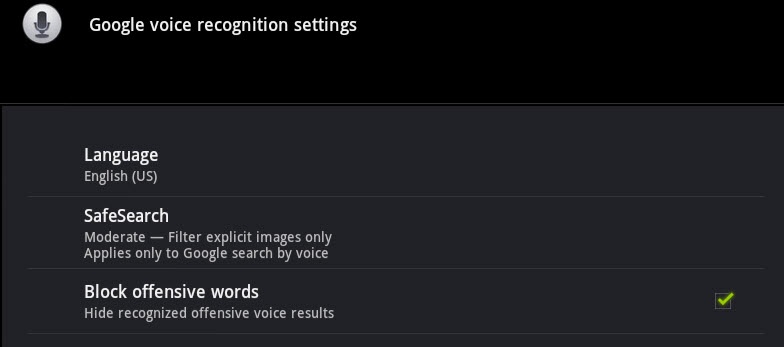
Language. Choose the language you’ll be speaking into the Galaxy Tab.
SafeSearch. Controls the kind of search results you get when you search Google using voice commands, by filtering explicit images and explicit text. The Moderate setting filters explicit images, and the Strict setting filters both explicit images and explicit text. Off turns off the filter.
Block offensive words. Blocks the results of a voice search that contains offensive words. Turn it off if you don’t want those results blocked.
Some apps, such as navigation, talk to you. The next section, Voice Output, lets you change settings related to the voice you hear. Once again there’s only a single entry: Text-to-speech settings. But tap it, and you get inundated with settings: ...
Read now
Unlock full access


 O’Reilly covers everything we've got, with content to help us build a world-class technology community, upgrade the capabilities and competencies of our teams, and improve overall team performance as well as their engagement.I wanted to learn C and C++, but it didn't click for me until I picked up an O'Reilly book. When I went on the O’Reilly platform, I was astonished to find all the books there, plus live events and sandboxes so you could play around with the technology.I’ve been on the O’Reilly platform for more than eight years. I use a couple of learning platforms, but I'm on O'Reilly more than anybody else. When you're there, you start learning. I'm never disappointed.I'm always learning. So when I got on to O'Reilly, I was like a kid in a candy store. There are playlists. There are answers. There's on-demand training. It's worth its weight in gold, in terms of what it allows me to do.