April 2010
Beginner
464 pages
12h 7m
English
Now that you’ve set up your desktop exactly how you like it, you may want to give access to your computer to friends, family, or colleagues. Luckily, you can do this very securely using Ubuntu, and each user will be able to customize her working environment to her preferences (or you can do it for them).
The place to start is System → Administration → Users and Groups, which brings up the window shown in Figure 4-47.
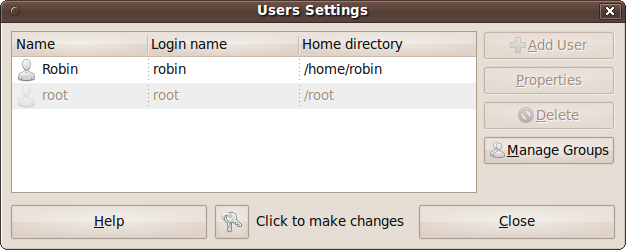
Figure 4-47. The Users Settings window
In this figure, you can see there are two users, Robin and root. The user root is the main and most important user as far as managing your computer goes, as will be explained later, but for now you can ignore it. The other user is me, Robin. Because administrating users is a potential security risk, I can edit my own details at this point by clicking my name, followed by the Properties button (which becomes enabled at that point). However, I cannot edit the root user or add new users.
To enable these features, you need to click the key icon next to “Click to make changes.” You will then be asked for your password, and after you enter it the various grayed-out options will become enabled.
Once you have entered your password and the Add User button becomes accessible, you should click it to bring up the “New user account” window, shown in Figure 4-48.
Figure 4-48. Creating a new user account
Here, you need to enter the Username ...
Read now
Unlock full access


 O’Reilly covers everything we've got, with content to help us build a world-class technology community, upgrade the capabilities and competencies of our teams, and improve overall team performance as well as their engagement.I wanted to learn C and C++, but it didn't click for me until I picked up an O'Reilly book. When I went on the O’Reilly platform, I was astonished to find all the books there, plus live events and sandboxes so you could play around with the technology.I’ve been on the O’Reilly platform for more than eight years. I use a couple of learning platforms, but I'm on O'Reilly more than anybody else. When you're there, you start learning. I'm never disappointed.I'm always learning. So when I got on to O'Reilly, I was like a kid in a candy store. There are playlists. There are answers. There's on-demand training. It's worth its weight in gold, in terms of what it allows me to do.