April 2010
Beginner
464 pages
12h 7m
English
Ubuntu One is a new service from Canonical, the publishers of Ubuntu, that provides you with 2 GB of free offline, or cloud, storage for backing up and transferring your files. If this free storage isn’t enough for you, you can also upgrade to a much larger 50 GB of space for a monthly fee.
To get started with Ubuntu One, select Applications → Internet → Ubuntu One. The first time you do so, you’ll be taken to the Launchpad Login Service page shown in Figure 11-16.
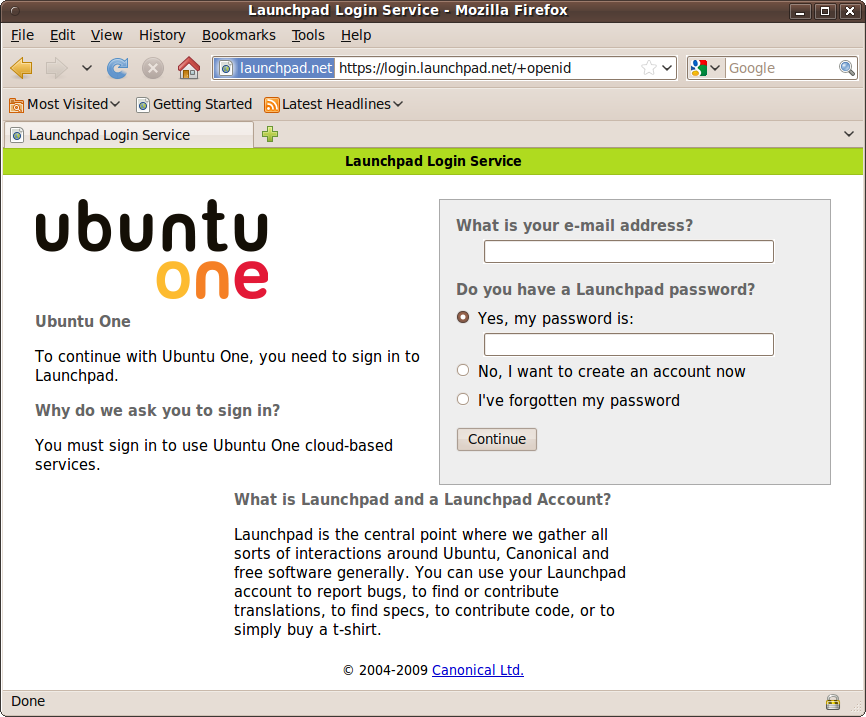
Figure 11-16. The Launchpad Login Service
Here, you can use a previous Launchpad login (if you have one) or create a new account. Either way, enter a valid email address first, and then click Continue.
If you are creating an account, a confirmation email will be sent to the address you gave, giving you a link you should follow. You will then be taken to a web page where you can choose your Display Name and decide whether to hide your email address. Then enter a password twice and click the Continue button.
Once you have created an account, you can simply enter your email address and password at the Login Service screen and click Continue. If a computer is new to Ubuntu One, you will be asked whether to add the computer you are using to your Ubuntu One account, so click Subscribe and then Add This Computer.
Once you have created an account, you will see a new icon in the top status ...
Read now
Unlock full access


 O’Reilly covers everything we've got, with content to help us build a world-class technology community, upgrade the capabilities and competencies of our teams, and improve overall team performance as well as their engagement.I wanted to learn C and C++, but it didn't click for me until I picked up an O'Reilly book. When I went on the O’Reilly platform, I was astonished to find all the books there, plus live events and sandboxes so you could play around with the technology.I’ve been on the O’Reilly platform for more than eight years. I use a couple of learning platforms, but I'm on O'Reilly more than anybody else. When you're there, you start learning. I'm never disappointed.I'm always learning. So when I got on to O'Reilly, I was like a kid in a candy store. There are playlists. There are answers. There's on-demand training. It's worth its weight in gold, in terms of what it allows me to do.