April 2010
Beginner
464 pages
12h 7m
English
Have you ever used the Zoom facility in Firefox and other browsers to view a web page in larger or smaller type? Well, you can do exactly the same thing with Ubuntu, which offers seven different levels of zoom control over the display of items in the file browser (but not of the desktop icons).
This makes it easy to locate documents even if you have limited visibility, and it is also a great feature for using Ubuntu on a device with a small screen, such as a MID, UMPC, or Netbook. You might want to reduce the size of icons or text so you can see more of them on a small screen, or because you have the luxury of a large monitor that lets you see small things clearly. On the other hand, you can increase the size to see them more clearly on a small screen, at the cost of viewing fewer at one time.
Figure 6-11 shows the icons reduced to their next-to-smallest size so more of them can fit in the file browser.
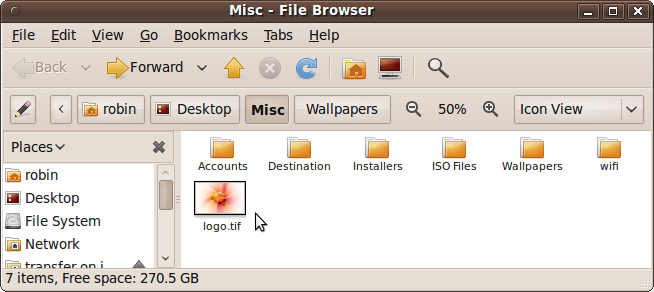
Figure 6-11. The result of zooming out a few times
To zoom in or enlarge the file browser icons, you can use any of the following controls:
Hold down Ctrl and press the + (plus sign) key
Hold down Ctrl and scroll the mouse wheel forward
Right-click the file browser background and select Zoom In
To zoom out or decrease the size of file browser icons, use one of the following combinations:
Hold Down Ctrl and press the – (hyphen) key
Hold down Ctrl and scroll ...
Read now
Unlock full access


 O’Reilly covers everything we've got, with content to help us build a world-class technology community, upgrade the capabilities and competencies of our teams, and improve overall team performance as well as their engagement.I wanted to learn C and C++, but it didn't click for me until I picked up an O'Reilly book. When I went on the O’Reilly platform, I was astonished to find all the books there, plus live events and sandboxes so you could play around with the technology.I’ve been on the O’Reilly platform for more than eight years. I use a couple of learning platforms, but I'm on O'Reilly more than anybody else. When you're there, you start learning. I'm never disappointed.I'm always learning. So when I got on to O'Reilly, I was like a kid in a candy store. There are playlists. There are answers. There's on-demand training. It's worth its weight in gold, in terms of what it allows me to do.