April 2010
Beginner
464 pages
12h 7m
English
The top of the Nautilus file browser window features two toolbars called Main and Location, which appear as long as you are in Browser mode. If you are in Spatial mode, you will not see the top toolbars or the lefthand directory tree pane (see the section Edit → Preferences → Behavior for how to change between modes). Figure 6-34 shows the toolbars displayed in a file browser window set to Browser mode.
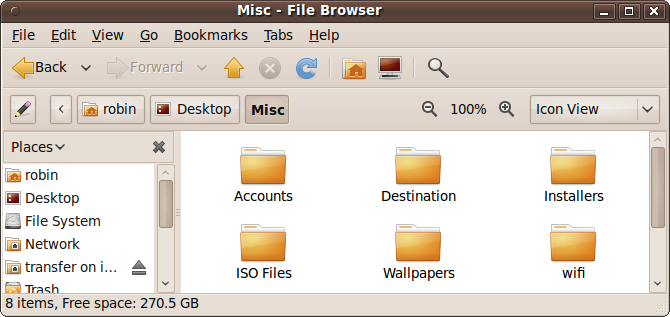
Figure 6-34. Underneath the menu bar are two toolbars
In order from left to right, the icons on this toolbar are all duplicated in the file browser menus, and are as follows:
When enabled, these move you back and forth through a path of folders you have previously navigated.
This icon takes you up to the level directly above the current folder.
This icon stops the file browser when it is taking too long to return all the information.
This icon refreshes the file browser window, updating it with any changes that have been made.
This icon takes you to your home folder.
This icon takes you to the Computer folder, which shows everything on your local system, including connected devices such as CD drivers and USB devices.
This icon opens up the search bar.
The first icon on the Location bar (which looks like a pencil and paper) toggles the bar between showing buttons for the folders and displaying a text box ...
Read now
Unlock full access


 O’Reilly covers everything we've got, with content to help us build a world-class technology community, upgrade the capabilities and competencies of our teams, and improve overall team performance as well as their engagement.I wanted to learn C and C++, but it didn't click for me until I picked up an O'Reilly book. When I went on the O’Reilly platform, I was astonished to find all the books there, plus live events and sandboxes so you could play around with the technology.I’ve been on the O’Reilly platform for more than eight years. I use a couple of learning platforms, but I'm on O'Reilly more than anybody else. When you're there, you start learning. I'm never disappointed.I'm always learning. So when I got on to O'Reilly, I was like a kid in a candy store. There are playlists. There are answers. There's on-demand training. It's worth its weight in gold, in terms of what it allows me to do.