July 2005
Intermediate to advanced
866 pages
29h 18m
English
Using the panes of the Sound panel, you can configure the sound system of your Mac in any of several ways.
Here's a quick way to jump directly to the Sound panel of System Preferences—from the keyboard, without ever having to open System Preferences or click Sound. Just press Option as you tap one of the volume-adjustment keys on the top row of your Apple keyboard.
"Sound effects" means error beeps—the sound you hear when the Mac wants your attention, or when you click someplace you shouldn't.
Just click the sound of your choice to make it your default system beep. Most of the canned choices here are funny and clever, yet subdued enough to be of practical value as alert sounds (see Figure 9-14).
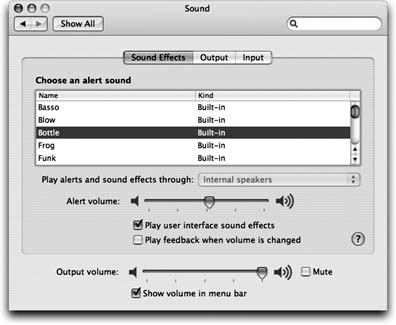
Figure 9-14. You can adjust your overall speaker volume independently from the alert-beep volume, thank goodness. Tip nerds should note that you can also adjust the alert volume by holding down the Option key as you drag the handle in the speaker-volume menulet (on your menu bar).
As for the other controls on the Sound Effects panel, they include:
Alert volume slider. Some Mac fans are confused by the fact that even when they drag this slider all the way to the left, the sound from games and music CDs still plays at full volume.
The actual main volume slider for your Mac is the "Output volume" slider at the bottom of the Sound pane. The "Alert volume" slider is just for ...
Read now
Unlock full access


 O’Reilly covers everything we've got, with content to help us build a world-class technology community, upgrade the capabilities and competencies of our teams, and improve overall team performance as well as their engagement.I wanted to learn C and C++, but it didn't click for me until I picked up an O'Reilly book. When I went on the O’Reilly platform, I was astonished to find all the books there, plus live events and sandboxes so you could play around with the technology.I’ve been on the O’Reilly platform for more than eight years. I use a couple of learning platforms, but I'm on O'Reilly more than anybody else. When you're there, you start learning. I'm never disappointed.I'm always learning. So when I got on to O'Reilly, I was like a kid in a candy store. There are playlists. There are answers. There's on-demand training. It's worth its weight in gold, in terms of what it allows me to do.