November 2001
Intermediate to advanced
480 pages
16h 4m
English
Dreamweaver 4 can import, export, sort, and format tabular data as described in the following sections.
Use File → Import → Import Tabular Data or the Insert Tabular Data icon on the Objects panel to import and format tabular data from a text file. Entries should be delimited by tabs, commas, semicolons, colons, or another delimiting character. The Import Table Data dialog box, shown in Figure 3-15, has the settings listed in Table 3-3.
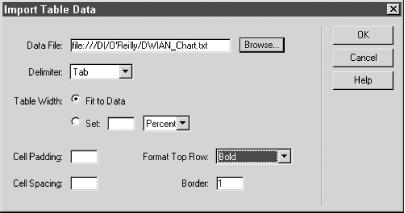
Figure 3-15. The Import Table Data dialog box
Table 3-3. Import Table Data dialog box options
|
Option |
Description |
|---|---|
|
Data File |
Selects any file from the local hard drive or network. |
|
Delimiter |
Identifies the column delimiter in the file to be imported: Tab (the default), Comma, Semicolon, Colon, or Other. |
|
Table Width |
Sets the width of the overall table. The Fit to Data option adjusts the size of the table to the information being imported; the Set option sets the width to a fixed pixel size or as a percentage of the browser window. |
|
Cell Padding |
Sets the margin, in pixels, between the border of the cell and the cell contents. |
|
Cell Spacing |
Sets the amount of space, in pixels, between adjacent cells. |
|
Format Top Row |
Specifies formatting for the top row of the table (i.e., column headings). The options are No Formatting, Bold, Italic, or Bold Italic. |
|
Border |
Sets the width, in pixels, of the border ... |
Read now
Unlock full access


 O’Reilly covers everything we've got, with content to help us build a world-class technology community, upgrade the capabilities and competencies of our teams, and improve overall team performance as well as their engagement.I wanted to learn C and C++, but it didn't click for me until I picked up an O'Reilly book. When I went on the O’Reilly platform, I was astonished to find all the books there, plus live events and sandboxes so you could play around with the technology.I’ve been on the O’Reilly platform for more than eight years. I use a couple of learning platforms, but I'm on O'Reilly more than anybody else. When you're there, you start learning. I'm never disappointed.I'm always learning. So when I got on to O'Reilly, I was like a kid in a candy store. There are playlists. There are answers. There's on-demand training. It's worth its weight in gold, in terms of what it allows me to do.