February 2005
Beginner to intermediate
608 pages
22h 4m
English
Deleting entries is only for discarding entries that you create by mistake. If you've already used list entries in transactions, hide the entries that you don't use anymore so your historical records are complete. For example, you wouldn't delete the Nebraska sales tax code just because you're not selling your products there right now. You still need to know how much sales tax you collected and remitted to Nebraska in the past.
Hiding list entries that you no longer use accomplishes two things:
Your previous transactions still use the entries you've hidden, so your historical records don't change.
When you create new transactions, the hidden entries don't appear in drop-down lists, so a sudden muscle cramp won't choose an entry by mistake.
The methods for hiding and reactivating list entries, shown in Figure 5-9, are exactly the same regardless of which list you're working on.
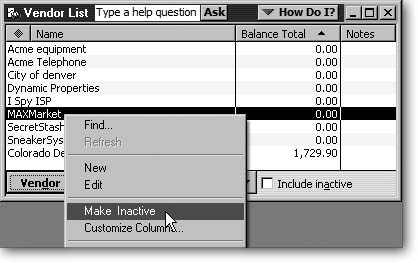
Figure 5-9. A few of the lists on the Customer & Vendor Profile submenu can include subentries. You can create multiple levels of entries in the Customer Type, Job Type, and Vendor Type lists. For example, you might create top-level types for vendors that require 1099 forms and those that don't. Then, you can create subentries for types such as electricians, plumbers, and carpenters.
To hide an entry, in the list window, right-click the entry and choose Make <list name> ...
Read now
Unlock full access


 O’Reilly covers everything we've got, with content to help us build a world-class technology community, upgrade the capabilities and competencies of our teams, and improve overall team performance as well as their engagement.I wanted to learn C and C++, but it didn't click for me until I picked up an O'Reilly book. When I went on the O’Reilly platform, I was astonished to find all the books there, plus live events and sandboxes so you could play around with the technology.I’ve been on the O’Reilly platform for more than eight years. I use a couple of learning platforms, but I'm on O'Reilly more than anybody else. When you're there, you start learning. I'm never disappointed.I'm always learning. So when I got on to O'Reilly, I was like a kid in a candy store. There are playlists. There are answers. There's on-demand training. It's worth its weight in gold, in terms of what it allows me to do.