February 2005
Beginner to intermediate
608 pages
22h 4m
English
When you make purchases with a credit card, the easiest way to record those charges in your company file is by signing up for online banking (page 496) and downloading your transactions (page 499). But you can also enter credit charges manually.
Whether you download charges or not, entering charges manually is a great way to catch erroneous or fraudulent charges that appear on your statement. For example, after entering your charges manually, you can download the charges from your credit card company. If you see additional charges that don't match the ones you entered, either you forgot a charge, or there's an error in your account.
Entering credit card charges is similar to writing checks except that you work in the Enter Credit Card Charges dialog box, shown in Figure 10-18. To open it, choose Banking→Record Credit Card Charges→Enter Credit Card Charges. You can also enter charges directly in the credit card account register, just as you do checks (page 295).
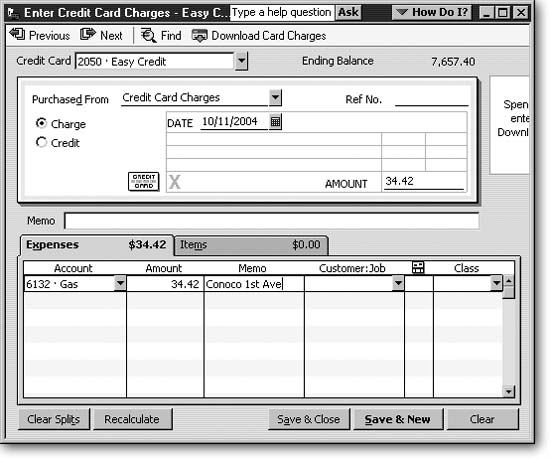
Figure 10-18. Unless you want your Vendor List awash with every pizza parlor, gas station, and toll booth you patronize, consider creating a vendor called Credit Card Charges (or create several generic vendors such as Gas, Restaurant, and Parking). If you want to track the specific vendors, type their names in the Memo field. In the Ref. No. field, you can type your receipt number. Allocating a charge ...
Read now
Unlock full access


 O’Reilly covers everything we've got, with content to help us build a world-class technology community, upgrade the capabilities and competencies of our teams, and improve overall team performance as well as their engagement.I wanted to learn C and C++, but it didn't click for me until I picked up an O'Reilly book. When I went on the O’Reilly platform, I was astonished to find all the books there, plus live events and sandboxes so you could play around with the technology.I’ve been on the O’Reilly platform for more than eight years. I use a couple of learning platforms, but I'm on O'Reilly more than anybody else. When you're there, you start learning. I'm never disappointed.I'm always learning. So when I got on to O'Reilly, I was like a kid in a candy store. There are playlists. There are answers. There's on-demand training. It's worth its weight in gold, in terms of what it allows me to do.