February 2005
Beginner to intermediate
608 pages
22h 4m
English
QuickBooks includes four mileage reports that can help you prepare your taxes or discuss charges with your customers. The reports are simple, mainly because you don't track that much mileage information. To generate a report, in the Enter Vehicle Mileage dialog box icon bar, click the downward pointing arrow to the right of the words "Mileage Reports."
The reports are also available on the submenu you see when you choose Reports→Jobs, Time & Mileage.
Here're the reports you can choose and what they're useful for:
Mileage by Vehicle Summary. This report shows the total miles and the associated expense (using the standard mileage rate) for each vehicle in your Vehicle List. You can change the date range to generate the data you need for your tax return, as shown in Figure 17-14.
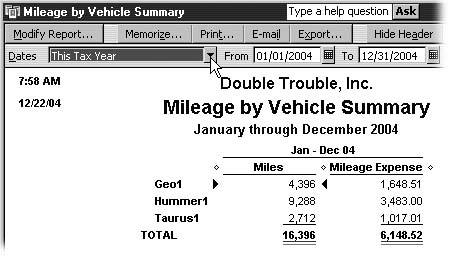
Figure 17-14. If you like to spend New Year's Eve gathering your tax documentation, in the Date box, choose This Tax Year. When you wait until after January 1st, in the Dates box, choose Last Tax Year.
Mileage by Vehicle Detail. This report shows each trip that contributed to a vehicle's mileage. For each trip made, the report includes the trip end date, total trip miles, mileage rate, and mileage expense. If you have questions about your deductions, double-click a trip entry to open the Enter Vehicle Mileage dialog box for that transaction.
Mileage by Job Summary. This report shows ...
Read now
Unlock full access


 O’Reilly covers everything we've got, with content to help us build a world-class technology community, upgrade the capabilities and competencies of our teams, and improve overall team performance as well as their engagement.I wanted to learn C and C++, but it didn't click for me until I picked up an O'Reilly book. When I went on the O’Reilly platform, I was astonished to find all the books there, plus live events and sandboxes so you could play around with the technology.I’ve been on the O’Reilly platform for more than eight years. I use a couple of learning platforms, but I'm on O'Reilly more than anybody else. When you're there, you start learning. I'm never disappointed.I'm always learning. So when I got on to O'Reilly, I was like a kid in a candy store. There are playlists. There are answers. There's on-demand training. It's worth its weight in gold, in terms of what it allows me to do.