April 2017
Beginner to intermediate
376 pages
8h 4m
English
Select the AppManager object and double-click on the ApplicationManager script to open it up in Visual Studio.
Once there, we need to add the following:
public TextMesh debugTextMesh;
public string debugInfoString = "DebugInfo:";
Back in Unity in the Application Manager, the empty slot Debug Text Mesh should appear; drag and drop your DebugInfo object to that slot, as follows:
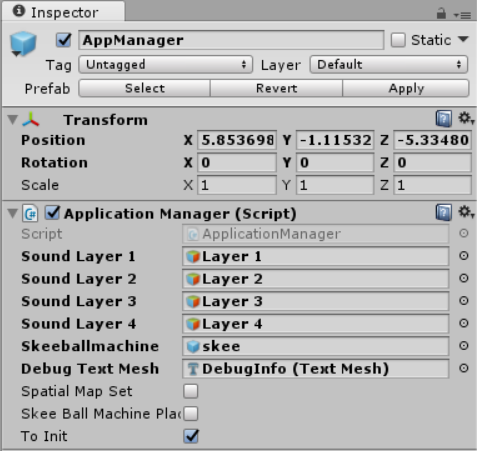
Great, one last line of code.
Move down to the first empty space in the Start() function and add debugTextMesh.text = debugInfoString;.
This connects our string to our prefab textbox.
Move or hide the other two 3DTextPrefabs and click on the ...
Read now
Unlock full access


 O’Reilly covers everything we've got, with content to help us build a world-class technology community, upgrade the capabilities and competencies of our teams, and improve overall team performance as well as their engagement.I wanted to learn C and C++, but it didn't click for me until I picked up an O'Reilly book. When I went on the O’Reilly platform, I was astonished to find all the books there, plus live events and sandboxes so you could play around with the technology.I’ve been on the O’Reilly platform for more than eight years. I use a couple of learning platforms, but I'm on O'Reilly more than anybody else. When you're there, you start learning. I'm never disappointed.I'm always learning. So when I got on to O'Reilly, I was like a kid in a candy store. There are playlists. There are answers. There's on-demand training. It's worth its weight in gold, in terms of what it allows me to do.