December 2009
Beginner
416 pages
9h 53m
English
We’re going to assume you already have HTML pages that you’re ready to convert to Joomla—either from your own design or from an existing website. For this walkthrough, we’ll use our mock website, JoomlaPetCenter.com (see Figure 17-1).
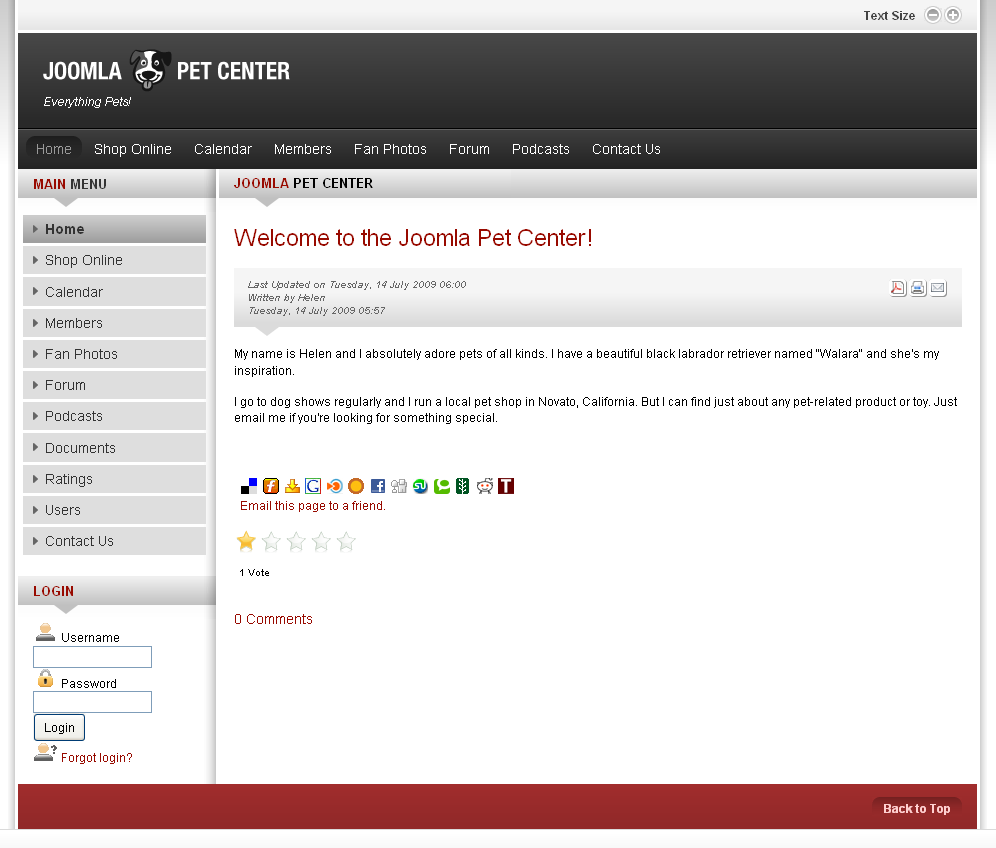
Figure 17-1. The Joomla Pet Center home page
It looks like a pretty typical website with a main menu across the top of the page under the page header and a secondary menu on the left side. Under the secondary menu is a login box. The welcome message “Welcome to the Joomla Pet Center!” is in the main area of the page and below it is the footer across the bottom.
In order to start thinking like Joomla, break down your page structure into “zones.” These zones are areas that separate your content into blocks.
We’ve highlighted the following zones on the home page:
Header: The top area of the page, usually containing a logo, the site name, or other decorative elements.
Top Main Menu: Websites usually have either a horizontal navigation bar across the top, a vertical navigation bar on the left column, or a combination of both.
Left Secondary Menu: For this site, these are additional items that don’t fit in the top main menu, but on other sites it may show submenu items contained in one of the site sections.
Login Box: This is where the user logs in to the site, possibly to access special content.
Main Content Area: This is where the majority ...
Read now
Unlock full access


 O’Reilly covers everything we've got, with content to help us build a world-class technology community, upgrade the capabilities and competencies of our teams, and improve overall team performance as well as their engagement.I wanted to learn C and C++, but it didn't click for me until I picked up an O'Reilly book. When I went on the O’Reilly platform, I was astonished to find all the books there, plus live events and sandboxes so you could play around with the technology.I’ve been on the O’Reilly platform for more than eight years. I use a couple of learning platforms, but I'm on O'Reilly more than anybody else. When you're there, you start learning. I'm never disappointed.I'm always learning. So when I got on to O'Reilly, I was like a kid in a candy store. There are playlists. There are answers. There's on-demand training. It's worth its weight in gold, in terms of what it allows me to do.